 |
 |
With your keyboard on, let's take another look at the HOME or MAIN screen. You've seen the DEMOs. And, in the next lesson, we'll take a look at the voices in your keyboard and how you can select them and audition them. Of course, if you are just learning to play, it may be a while before you start showing off your own songs on your new keyboard. But you can show off some songs immediately because your keyboard includes some preset songs that are always there and ready for you to play.
The first section below discusses how to select and launch the available preset songs using the new touch screen of the PSR-SX900. The procedure is the same on the Genos. Note that the screen illustrations are scaled down in the text below but if you click on the screen, a larger full resolution display will be shown in a separate window or tab.
If you have a Tyros, PSR, or PSR-S keyboard, jump to the following section to see how to select preset songs on these models.
Preset Songs on the PSR-SX900
 It is clear on the HOME screen where the voices are. It is also clear where the currently loaded style (SkyPop) is located. But where are the songs?
Look under the voices and above the style. There is a thinner line with a button for the MIDI file and a button for an Audio file. If no midi file has been loaded, the midi file name will be shown as "New Song". The Genos HOME page is similar, but it lists the Audio file first and then the MIDI file.
 To select a new MIDI song, press the "New Song" file name under MIDI. This opens up the MIDI display screen shown here. "Preset" is highlighted and you see on page "P1" five songs (Perfect, ..., Beautiful Dreamer). Touch any of the song names to select (highlight) and load that song. To close this window, press the "X" button and return to the HOME screen. Note that you can also press the [Exit] button on your keyboard to close the displayed window.
I selected the first song, Perfect, and returned to the HOME screen.

The MIDI box now shows that "Perfect" is loaded as the MIDI song. The space on the screen for the MIDI box is limited so let's expand that box a bit:

The name of the currently loaded MIDI song, Perfect, is shown in the box. The top link shows the time signature (4/4), the tempo (63 bpm), and the current measure and the total measures in the song (001/043). However, there is no way to start the MIDI song playing from the HOME screen. To start the song playing you need to use the buttons on your keyboard.
Playing the Song
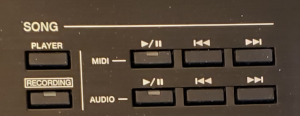 On the left side of your keyboard, up at the top, are the SONG controls. There is a Play/Pause button, a Rewind button, and a Fast forward button for MIDI songs and for AUDIO songs. Press the Play/Pause button to start or stop playing the MIDI song. It is also possible to see the score of the midi song and, in some cases, the lyrics for the song. Let's see how to do that.
 On the right-hand side of your keyboard, you see the MENU button. Press that button to bring up the first Menu1 screen from where you can select [Score] to see the score of the playing MIDI file or [Lyrics] to see the lyrics for the current MIDI if that song happens to include lyrics. All the Preset Songs do include lyrics.
In the next section, we discuss playing the preset songs on earlier Yamaha arranger keyboards.
Selecting A Song on Tyros/PRS
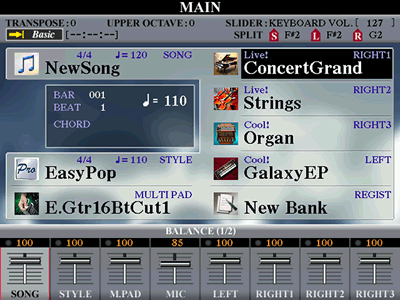 Notice the selection next to your [A] button. For all of these
keyboards, the first cell will say NewSong and this is where you can select a "SONG" to
play. You see the word
"SONG" in the upper right-hand corner of that cell. The initial
Tyros3 screen is shown here. The Tyros4 and Tyros5 screens are similar. You select a "STYLE" by using
the
[D] button and a "MULTIPAD" by using the [E] button.
The actual cell placement may differ
on your model. For example, on the PSR-S950 and S910, you select the STYLE with the [E] button. On all the keyboards, you select the first right-hand voice with the "F" button
and the second right-hand voice with the "G" button. (More on selecting
voices in the next lesson).
Notice the selection next to your [A] button. For all of these
keyboards, the first cell will say NewSong and this is where you can select a "SONG" to
play. You see the word
"SONG" in the upper right-hand corner of that cell. The initial
Tyros3 screen is shown here. The Tyros4 and Tyros5 screens are similar. You select a "STYLE" by using
the
[D] button and a "MULTIPAD" by using the [E] button.
The actual cell placement may differ
on your model. For example, on the PSR-S950 and S910, you select the STYLE with the [E] button. On all the keyboards, you select the first right-hand voice with the "F" button
and the second right-hand voice with the "G" button. (More on selecting
voices in the next lesson).
Right now, let's take a look at that "SONG" button. The expression "NewSong" means no song is currently loaded and you can create a new song if you want. To "load" a song that is stored in your keyboard, simply press that [A] button and you open up the SONG screen (see below).
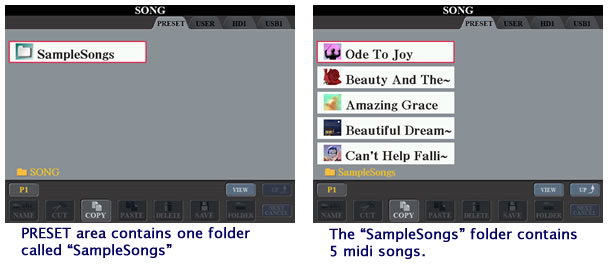
This screen will display several tabs at the top of the screen. The first tab is always "PRESET", which is selected in the figure above. The other three tabs are "USER", "HD1", and "USB1". The "HD1" is only available on the Tyros models and it represents the Tyros hard drive. The "USB1" tab is only visible if you have plugged a USB drive into your keyboard.
These are the four areas where you can store files.
- Files in the PRESET area are permanently stored in the keyboard hardware.
- The "USER" area is a relatively small area of flash memory within your keyboard. All of the keyboards have a "USER" area. On the PSR-3000 and earlier models, the USER area was equivalent of about one floppy disk. On recent models, the USER area is substantially larger.
- The Tyros models can have an internal hard drive and that is indicated by the "HD1" label.
- If you have a USB flash drive connected, files there would be found under the "USB1" tab.
Remember, that you would use the "TAB" buttons to the right of the display screen to move back and forth from one tab to another.
In the PRESET area of the Tyros3, there is one folder stored. It is called "SampleSongs". You can tell it is a folder because of the folder icon shown in the illustration. Folders can contain files and/or additional folders. To select that folder and see what is in it, you would once more push the [A] button because that folder is listed right next to the [A] button.
When you "open" that folder, you see the available preset songs stored in your keyboard. The songs available in the Tyros3 are shown in the second screen shot above. The Tyros5 has the same sample songs except Can't Help Falling is replaced by Achy Breaky Heart. To select a particular song, press the button next to that song. When you press the button, the song title will be highlighted (white letters on a dark background). Press the various buttons to see how you can select any of the songs. To return to the MAIN screen, push the EXIT button.
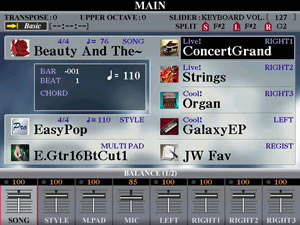 If you double-click a button,
that is, push it twice quickly, that will serve to both select the song and
return you to the MAIN screen. The screen shown here has the song "Beauty
And The Beast"
selected and loaded into the SONG cell. Additional information about that
song is also shown in that cell. The tempo of the song is shown as 76 (bpm)
and the time signature is 4/4. To "play" the song, you will use a group of control buttons labeled "SONG" located to the left of the main screen.
If you double-click a button,
that is, push it twice quickly, that will serve to both select the song and
return you to the MAIN screen. The screen shown here has the song "Beauty
And The Beast"
selected and loaded into the SONG cell. Additional information about that
song is also shown in that cell. The tempo of the song is shown as 76 (bpm)
and the time signature is 4/4. To "play" the song, you will use a group of control buttons labeled "SONG" located to the left of the main screen.
Playing A Song
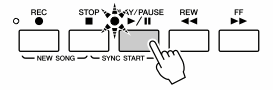 The "SONG" buttons let you record your own songs, but we'll save
that discussion for later. They also let you load and play midi songs.
All the keyboards have a set of buttons that look like those shown below (from the SONG section of the S970 keyboard.) The buttons may be labeled (REC, STOP, PLAY/PAUSE, REW, FF) or may just show symbols like below.
The "SONG" buttons let you record your own songs, but we'll save
that discussion for later. They also let you load and play midi songs.
All the keyboards have a set of buttons that look like those shown below (from the SONG section of the S970 keyboard.) The buttons may be labeled (REC, STOP, PLAY/PAUSE, REW, FF) or may just show symbols like below.

To hear the song performed, press the PLAY/PAUSE button and your selected song starts playing. Of course, pressing the button again "pauses" the song. To stop the song, press the STOP button. The REW button is for rewinding the song back to the beginning and FF for moving fast forward. When you are ready to record your own songs, you'll use that REC button.
You do not have to return to the MAIN screen to play your song. You can select the song in the song selection screen and press the PLAY/PAUSE button to hear the song. You can stop that song and select another song and start it playing. This way, you can try out all those preset songs.
Song Select Button
On the mid-level keyboards, you also see a SELECT button in the SONG section. Pressing this button is the same as going to the MAIN screen and pressing the [A] button next to the SONG cell -- it takes you right to the SONG display screen where you can select your song.
The Tyros3/4/5 models do not have a SELECT button. Instead they have four buttons labeled I, II, III, and IV. The "I" button is the same as the SONG SELECT button on the mid-level keyboards. The Tyros models allow you to create your own song storage areas (the II, III, and IV buttons) that hold specific songs stored anywhere on your keyboard (USER, USB, or HD). You could, for example, select a folder of songs in one of your storage areas and then use the MEMORY button (use alternate view of the SONG display) in conjunction with one of these song storage areas to "store" the folder reference in that area. Then, when you pressed the relevant button, for example, II, it would go immediately to the folder that you had memorized for that button and show you the songs available in that folder.
SCORE and LYRICS Buttons
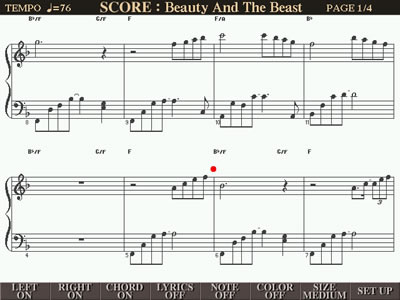 Another
useful button in the SONG area is labeled SCORE. While you are listening
to a midi song, press the SCORE button to bring up a display of the musical
score for the song. As the song plays, the score will move along with the
music. The registrations at the bottom of the screen allow you to select
various options for how the score will be displayed. For example, you may
turn the display of the left hand (bass lines) on or off. You can choose
to display the chords or hide them. If a song has lyrics, you can show them
or hide them, etc.
Another
useful button in the SONG area is labeled SCORE. While you are listening
to a midi song, press the SCORE button to bring up a display of the musical
score for the song. As the song plays, the score will move along with the
music. The registrations at the bottom of the screen allow you to select
various options for how the score will be displayed. For example, you may
turn the display of the left hand (bass lines) on or off. You can choose
to display the chords or hide them. If a song has lyrics, you can show them
or hide them, etc.
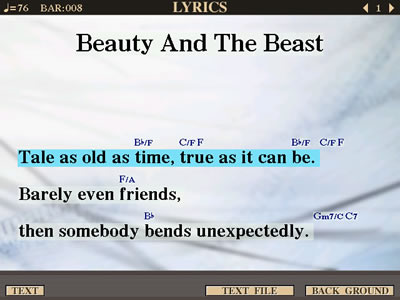 The
LYRICS button will show you the lyrics of a song, IF those lyrics are included
in the midi file. Not all midi files include the lyrics. This button may
be labeled KARAOKE on some keyboards. As the song plays, the LYRICS screen
highlights the words that go with the melody. If your keyboard happens to
have a video out jack, the LYRCIS screen can be shown on a larger monitor
and thus facilitate group sing-a-longs.
The
LYRICS button will show you the lyrics of a song, IF those lyrics are included
in the midi file. Not all midi files include the lyrics. This button may
be labeled KARAOKE on some keyboards. As the song plays, the LYRICS screen
highlights the words that go with the melody. If your keyboard happens to
have a video out jack, the LYRCIS screen can be shown on a larger monitor
and thus facilitate group sing-a-longs.
Performance Assistant (P.A.T.)
If you have a PSR-3000 or a Tyros2, you will have a button in the SONG control section labeled "Performance Assistant" or PAT. This feature is also available in later keyboards, but the button disappeared and the PAT feature has to be launched by stepping through various screens to get to the option. Press [FUNCTION], the select [SONG SETTING], then set [P.A.T] to ON.
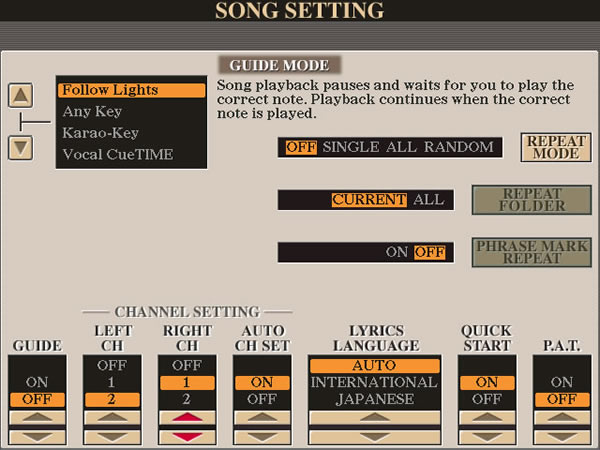
This option screen from the Tyros3/4/5 looks a bit intimidating. But it does show some features you may want to use including that P.A.T. feature (no longer even labeled as "Performance Assistant.") If you are new to keyboards and not very accomplished at reading music, this PAT feature will, nonetheless, allow you to amaze your friends with your playing ability. When you turn the PAT feature on, then, as a midi file is playing, you can press any keys at all on the keyboard and the Yamaha arranger will adjust the notes so that they go along with whatever song is playing. You can pick any voice and hit any notes, it will all sound great!
Another useful option on this page is the REPEAT MODE. By default it is OFF, but you can set it to one of the other options. If you set it to ALL, then when you start playing a song in a particular folder, when the song finishes, the keyboard will simply move on to the next song in the list.
In this section, I just wanted to introduce you to the preset songs that are built into your keyboard so we won't cover all the various options under SONG SETTING. But, since the PAT feature can be fun for "aspiring" musicians, I thought it might be useful to introduce it here. Now, let's go on and look at all the wonderful voices YOU can play on your keyboard.
|
|
This page updated on February 15, 2024 .