 |
 |
As you look over the records in the Music Finder database, and try out some of the song records, you will undoubtedly discover that some of the suggested styles and/or tempos are not quite to your liking. Well, you can change them! You can modify the record by editing it and then replace the record with the values you want. Or, you can take an existing record, modify it slightly and then save the modified version as a new record. In this lesson, I will show you how to edit these records.
The Edit Screen
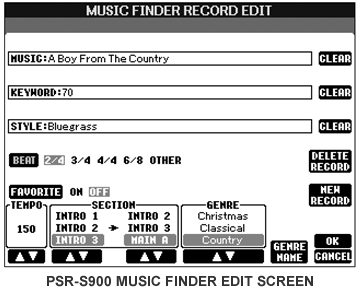 Let's
start by examining the MUSIC FINDER RECORD EDIT screen. I'll again use the
Tyros3 screens to illustrate, but let's first take a peek at the edit screen
on the PSR-S900 keyboard shown here. Whatever keyboard you have will look similar. There are nine "fields"
included in the Music Finder record. All of these fields, which are discussed
below, are available in the Music Finder system on all Yamaha keyboards.
Let's
start by examining the MUSIC FINDER RECORD EDIT screen. I'll again use the
Tyros3 screens to illustrate, but let's first take a peek at the edit screen
on the PSR-S900 keyboard shown here. Whatever keyboard you have will look similar. There are nine "fields"
included in the Music Finder record. All of these fields, which are discussed
below, are available in the Music Finder system on all Yamaha keyboards.
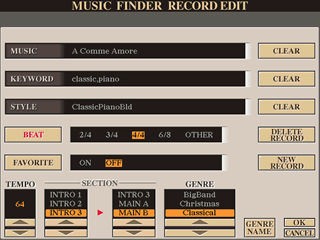 The
MUSIC FINDER RECORD EDIT screen for the Tyros3 is shown here. The Tyros screens are more colorful, but they contain the same fields as the PSR models.
The
MUSIC FINDER RECORD EDIT screen for the Tyros3 is shown here. The Tyros screens are more colorful, but they contain the same fields as the PSR models.
Let's take a look at what is stored in each field in a Music Finder record. Note that the term "record" and "field" are concepts regularly associated with a database. A "database" is a collection of "records." Each record is defined by a set of "fields." Information in the database is stored in the fields. Individual fields may be further defined by the type of information that may be stored in the field, for example, text, or numbers.
There are nine fields in a Music Finder record. The fields, and the information stored in the field are discussed below.
- MUSIC - a text field up to 32 characters long. Clear the field with the [F] button, select the field with the [A] button. You may enter any characters you want using the standard name input box. This field is used to hold the song title or a description for the type of song.
- KEYWORD - a text field up to 32 characters long. Clear this field with the [G] button and select with the [B] button. The standard name input box will be used to edit the keyword field. The keyword can be anything you want to use to describe the song. For example, you could enter 50 to represent a song of the 1950s. Separate multiple keywords with a comma (,), e.g. 50,country,sinatra.
- STYLE - text field displaying the style name. Clear the field with the [H] button and select it with the [C] button. When you select the style, the STYLE screen opens and you can navigate to the style you want. Select the style and then press [EXIT] to return to the Music Finder screen (or double-click the style when selecting it). When you select a style, the beat for the style is automatically placed in the BEAT field and the default tempo for the style is placed in the TEMPO field.
- BEAT - a fixed field that will contain either 2/4, 3/4, 4/4, 6/8, or OTHER. Press the [D] button to cycle through the available choices. The beat of the style you selected is automatically inserted in this field. You can change the setting, but it will not have any impact on the actual beat used in the style. This field is used primarily for searching for songs with a particular beat.
- FAVORITE - a fixed field that is either ON or OFF. The default setting is OFF. If the field is set to ON, this record will appear under the FAVORITE tab in the Music Finder screen. In fact, when you select that ADD TO FAVORITE option from the Music Finder screen, all that happens is that this field is changed from OFF to ON. Press the [E] key to move between the two options.
- TEMPO - every style has a default tempo and that is automatically inserted into this field. However, you can alter that tempo for this song choice by using the [1A] button to increase the tempo setting or the [1B] button to decrease the tempo.
- SECTION - This is actually two fields that specify the
section you want to start with and the section that then follows. The available
choices are: OFF, INTRO 1, INTRO 2, INTRO 3, MAIN A,
MAIN B, MAIN C, MAIN D, ENDING 1, ENDING 2, ENDING 3. Select the
first section using the [2] buttons and the next section using the [3]
buttons. For example, you may want to start this song off with the INTRO
2 and then follow that with the MAIN B section.
When you select this song in the Music Finder, the [INTRO2] button will
be lit and the [MAIN B] button will be flashing indicating that when you
press a key, INTRO 2 will start and then move on to MAIN B.
Note that this field was not available in the PSR-2000 or the PSR-2100. If you have a later keyboard and attempt to convert a PSR-2000 MFD file to one for your keyboard, both of the section options will be set to OFF. The next lesson on MusicFinderView will explain how you can convert other MFDs for use on your keyboard. - GENRE - From Merriam-Webster: "a category of musical
composition characterized by a particular style, form, or content." In
the Music Finder system, Yamaha provides the following choices:
You may have some trouble in picking a particular genre for a song, since a song may be considered included in several of the choices above. There are no correct answers, you can choose whatever you want here by using the [5] or [6] button to scroll through the choices. You may also use the [7] button to select the GENRE NAME option. This allows you to add any name you want (16 character maximum) to the standard Yamaha list. So, you really can tailor this field however you want.Yamaha Music Finder Genres ANY Country Latin Pianist Screen Theme All Time Hits Dance Floor Latin Pop Pop Ballads Showtime Ballad Disco March&Polka Pop Classics Sing-alongs Ballroom Easy Listening Modern Pop R&B/Gospel Swing BigBand Family Oldies Rock Traditional Christmas Instrumentals Organist Rock&Roll Waltz Classical Jazz Party Time Schlager World
Editing a Record
Tyros3 Editing Example
In that long list of 1,850 songs on the Tyros3, you may come across songs that you do not recognize and so the record for that song wouldn't be of much use to you. You can delete the record from the database.
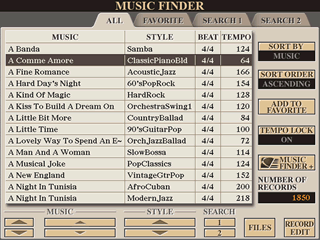 Alternatively,
you might try the record to hear the style and tempo and decide that the
indicated setting might go very well with a song you do know. In this case,
you could simply edit the record and change the song name and perhaps some
other fields. Let's give that a try.
Alternatively,
you might try the record to hear the style and tempo and decide that the
indicated setting might go very well with a song you do know. In this case,
you could simply edit the record and change the song name and perhaps some
other fields. Let's give that a try.
Right at the top of the song list is a title "A Comme Amore", which may be a beautiful song, but it is one that you are not likely to be playing. However, the style indicated is one that you like.
Select
the song and try out the style. After some experimentation, you decide that
you could use this style with a song you know called "These Foolish
Things." Make sure you have the song selected in the Music Finder song
list and press the [8B] button to edit the song record.
The record comes up and you see the title in the MUSIC field, which you will want to change. Press [A] to open the MUSIC field and use the name input box to change the name to "These Foolish Things."
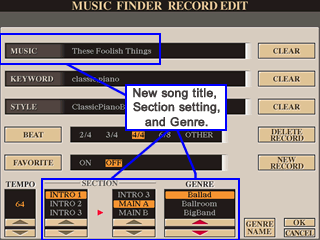 In
your experimentation, you decide that you would prefer INTRO
1 and MAIN A for this song rather than
the INTRO 3 and MAIN B setting
that are currently in the record. Use the [2] and [4] buttons to revise these
settings. Finally, change the GENRE field from Classical to Ballad with
the [5] or [6] buttons.
In
your experimentation, you decide that you would prefer INTRO
1 and MAIN A for this song rather than
the INTRO 3 and MAIN B setting
that are currently in the record. Use the [2] and [4] buttons to revise these
settings. Finally, change the GENRE field from Classical to Ballad with
the [5] or [6] buttons.
Now that you've made the changes you want, press the [8A] button to select the OK option. Since you have made changes, you are asked to confirm the changes: "Are you sure you want to change the record?" You do want to make the changes, so select the YES option.
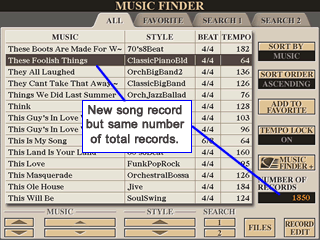 You
are returned to the main Music Finder display screen and you see you are
now pointed at the revised record. You can see the new title and, if your
list is sorted alphabetically by song title, it will appear with the "T"
songs. Note also that the total number of records in the database has not
changed. You still have 1,850 records. You merely revised one of those records
to refer to a different song.
You
are returned to the main Music Finder display screen and you see you are
now pointed at the revised record. You can see the new title and, if your
list is sorted alphabetically by song title, it will appear with the "T"
songs. Note also that the total number of records in the database has not
changed. You still have 1,850 records. You merely revised one of those records
to refer to a different song.
Adding a New Record
In this example, we could have chosen the NEW RECORD option (button [J]) when we were done with our editing changes. We would have been asked, "Are you sure you want to create a new record?" and we could respond YES, NO, or CANCEL If we selected YES, a new record would be added to the database and the original record we were editing would remain unchanged in the database. Our database would now have 1,851 records.
Deleting a Record
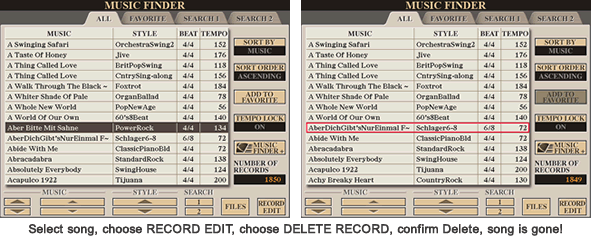
There may be no reason to keep records in your database that refer to unknown songs. While you could edit the record and select a new song title, you may prefer simply to get rid of the record. In the listing below, there is a German song using the PowerRock style, which you don't thing you are likely to use. Select that style and edit the style record. The DELETE RECORD option is selected by pressing button [I]. Choose that option, confirm the deletion, and the record is eliminated from the database. When you return to the Music Finder display screen you will see that the record is gone and you have one less record in your database.
Specifying External Style Files
For keyboards before the S910 and the Tyros4, when you attempt to select a different style for a record, you are presented with only two areas to choose from: PRESET and USER. Even if you have a USB drive and a hard drive where you may have styles stored, these choices are not available on the Tyros3. if you some favorite external styles you want to use, you can copy them to the USER area and select a style there for any Music Finder record. However, the Music Finder will only find that style if it remains in the USER area. If you remove it from the USER area, the song record stays in the database, but the style name is blank and if you select that file, you are told that the style is no longer available. But if you load it into the USER area once more, then the record in the database will, once more, work. So, if there are some styles that you use all the time, and you, therefore, always have them in the USER area, it would be safe for you to include them in "your" personalized Music Finder database.
Note: The PSR-S9xx keyboards and the Tyros4 and Tyros5 allow the user to include Song and Audio files in the MusicFinder records. They also allow you to select from HD and USB as well as the PRESET and USER storage areas. This greatly expands the utility of the MusicFinder system.
Music Finder Data in the Style
Suppose you like the Swing2 style that was on the PSR-2000. Unfortunately, this style does not appear in the PRESET styles on the Tyros3. You could load that style into USER memory and then use it as the suggested style for some songs you were adding to your database. Let's say you find half a dozen songs that you add to the database for which you select Swing2 as the style. You would now have 1,856 records in your database. After you add these records, you move the Swing2 style from the USER area back to your USB drive. Your current database would still have 1,856 records but 6 of then would no longer have a style selected.
If you were to reload your original Music Finder database, it would have, as before, 1,850 records. Now, simply copy the Swing2 style back to the USER area. If you now look at your Music Finder database, you see that the number of records has jumped to 1,856. The six records that you created with Swing2 as the suggested style were stored with that style when you copied it back to your USB drive. When that style is loaded back into the USER area, the records that were stored with the style were automatically added to your Music Finder database.
How does this work? The following information was provided in the PSR-2000 owners manual:
...all Music Finder data is handled together. Besides this, when you save or load style files, the Music Finder data that uses the relevant style file(s) is stored or added automatically. When you copy or move a style file on a floppy disk to the USER drive..., the record which was recorded when storing the relevant style is automatically added to the PSR-2000/1000.
This "feature" is not mentioned in the PSR-3000 manual or the Tyros3 manual, but it still works on the Tyros3 and other Yamaha keyboards. If I were to move the "original" Swing2 style from the PSR-2000 into my USER area, I would find 4 records added to my Music Finder database, all with those goofy Yamaha song names.
How do I know this? Well, using the PSR Style Database program by Peter Wierzba, you can select a folder of styles and the program provides you with detailed information about the styles in that folder. One of the options available is "View Songs" and, if you choose that option, you see a list of all the Song Titles and Keywords associated with the styles in that folder. So, with Peter's program you can view the hidden song data in any particular style file.
Next Step
Now that you are familiar with a Music Finder record and the kind of information stored there, our next lesson takes a look at how you can use that information to help you search for particular songs are types of songs.
|
|
This page updated on February 15, 2024 .